Synology NAS-to-NAS backup with Snapshot Replication, Part 2: What went wrong
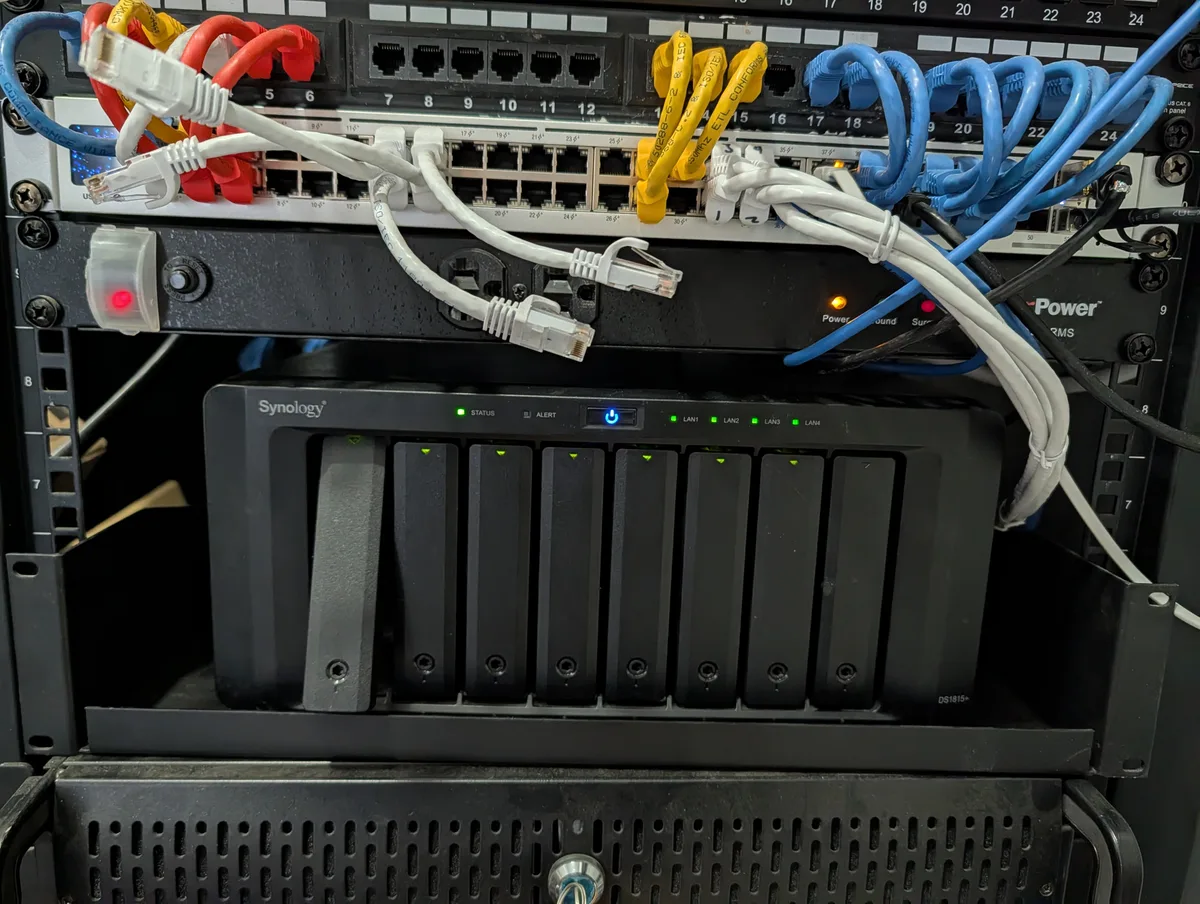
In part 1 I set up Snapshot Replication between two Synology NASes, kicked off the first 11 TB sync at a steady ~62 MB/s on a Friday evening, and called it a night.
The next morning, things did not look right.
This post is the diagnostic walk: what I saw, what I assumed, what I had to back out of, and where the real bottleneck turned out to live. Some of this story is me being wrong out loud, which is genuinely how diagnosing this stuff works.
What I saw the next day
The replication task was still listed as running. No “completed”, no “error”. But two things were off.
First, the destination volume’s used space had only grown to about 1.3 TB. At a steady 62 MB/s for eighteen hours, I expected somewhere near 4 TB. Either the throughput hadn’t been steady, or the sync had stopped, or both.
Second, when I sampled the destination NIC’s byte counters over a one-minute window, the receive rate was effectively zero. A few hundred bytes per second. Not “slow.” Not transferring.
So the visible state was: task says running, on-disk progress lower than expected, network idle. Not a great combo.
The first wrong theory
My first thought was that the run had bumped up against some kind of 720-minute timeout. I had a vague memory of seeing a log line from a 2021 attempt at a similar setup that mentioned 720 minutes, and I’d half-remembered the warning as if it was a hard kill.
Out of curiosity, I went looking for documentation that confirmed a 720-minute timeout on Snapshot Replication tasks. The Synology Knowledge Center doesn’t mention one. Community threads about slow or long-running replication tasks (and there are plenty) don’t reference it either. DSM emits the warning, but I couldn’t find anyone else publicly quoting it or talking about what it actually means.
The actual warning, pulled from that 2021 attempt on my own NAS:
Notably, that 2021 task did not get killed by the warning. It ran for another four-plus hours after the warning fired, and I stopped it manually. So whatever the warning is meant to signal, “we’re terminating you in a moment” is not it. The warning is a warning. It’s not a documented threshold and it’s not a timeout. I treated it like one for about ten minutes. That was the wrong call.
What was actually happening
Once I stopped guessing and started reading process state, the real picture came together quickly.
When I ran ps -ef on the source NAS, there was a fresh btrfs send process. Fresh. It had started at 15:37 that afternoon, not at 17:13 the previous evening. So the original send process had died at some point overnight, and a new one had spun up to continue.
The kicker was what showed up next to that process when I looked at its full command line. Not something I’d run myself, this is roughly how the process line looked when the replication daemon spun it up:
A few things worth noticing in that line. The folder it’s reading from (GMT-07-2026.05.08-17.13.45) is the original snapshot the replication was taken against, named with the timezone and timestamp from the moment the task was created. That part doesn’t change, even when the process restarts.
The interesting flag is -k 28399387. That’s a resume token. BTRFS keeps a transaction ID for an in-progress send, and if the send dies, the next attempt picks up from that point instead of starting from scratch. So the 1.3 TB on the destination wasn’t lost. It was the floor that the next attempt was building on top of.
I never figured out exactly what killed the original send. Could have been a brief network blip, a TCP keepalive timeout during a long metadata-walk pause, or the Replication Service restarting itself. It doesn’t really matter, because:
The resume token is the feature. Snapshot Replication is designed to die and resume gracefully on long initial syncs.
That is genuinely the right behavior. Long-running btrfs send across a household LAN will get interrupted occasionally. The system is built to absorb that. Once I understood it was a feature, not a failure, the “stuck overnight” symptom turned into “doing exactly what it should.”
Where the real bottleneck lives
That answered “is it broken?” (no) but not “is it as fast as it should be?”. So I poked at both NASes while the new send was running.
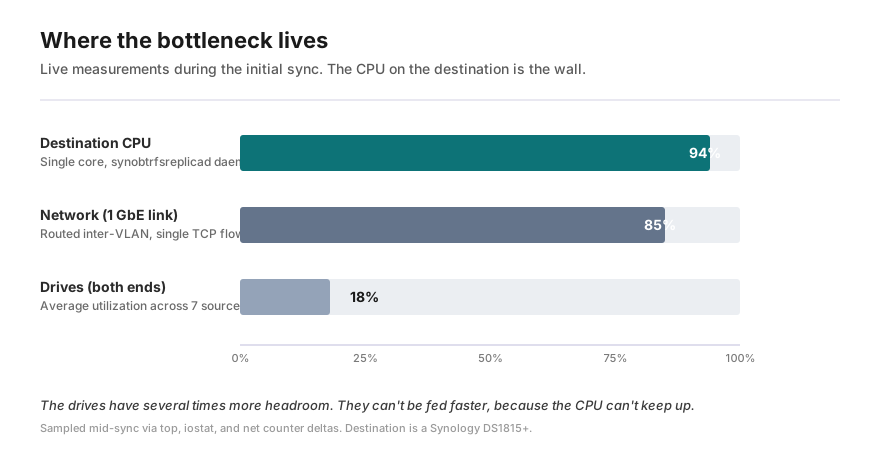
The source NAS was bored. CPU around 73% idle, drives reading at 13 to 28 percent utilization, more than enough headroom to push harder. Whatever was capping the rate, it wasn’t the source.
The destination NAS was a different story. The Synology daemon that handles incoming replication was pegged at 94% of one CPU core, with the helper btrfs receive process taking another 18%. Meanwhile, the destination drives were only at 13 to 22 percent utilization. The disks could absorb several times more data per second than they were receiving. They just weren’t being fed faster, because the CPU couldn’t keep up.
The destination box has an Intel Atom C2538 processor (4 cores at 2.4 GHz, 22 nm, ~12-year-old architecture, PassMark score around the bottom of the modern chart), running RAID-5 parity calculation, BTRFS receive bookkeeping, and snapshot tree updates simultaneously. That work is per-byte, not per-disk. Adding faster drives wouldn’t help. The CPU was the wall.
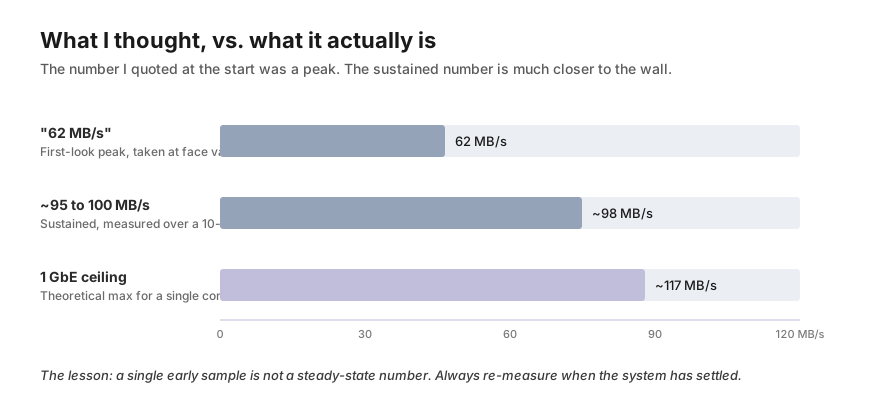
I sampled the throughput over a clean ten-minute window with the new send process running. The result was ~95 to 100 MB/s sustained, which surprised me upward. The “62 MB/s” I’d seen at the start was a peak number from early-stage transfer, not a representative steady-state. The real number was much closer to the theoretical 1 GbE ceiling of about 117 MB/s.
The bottleneck breakdown made the picture even clearer once I plotted it next to the drives:
So the corrected story is:
- Sustained throughput: about 95 to 100 MB/s (good).
- Bottleneck on the destination: CPU pegged on one core (the wall).
- Drives on both sides have several times more headroom than is being used.
- The 11 TB initial sync should take roughly 30 hours of pure transfer time, plus restart overhead, putting the total wall time around 36 to 48 hours.
That’s slow by modern standards, fine by the standards of the hardware actually running the receiver, and 100% expected for a NAS that came out the same year as the original Apple Watch.
The teaching moment: link aggregation wouldn’t fix this
While I was thinking about ways to speed it up, I went down the link aggregation rabbit hole, and it’s worth surfacing because most people get this wrong.
The destination NAS has four 1 GbE ports. Configure them as an aggregated bond and surely you get four times the bandwidth, right?
No. Two reasons.
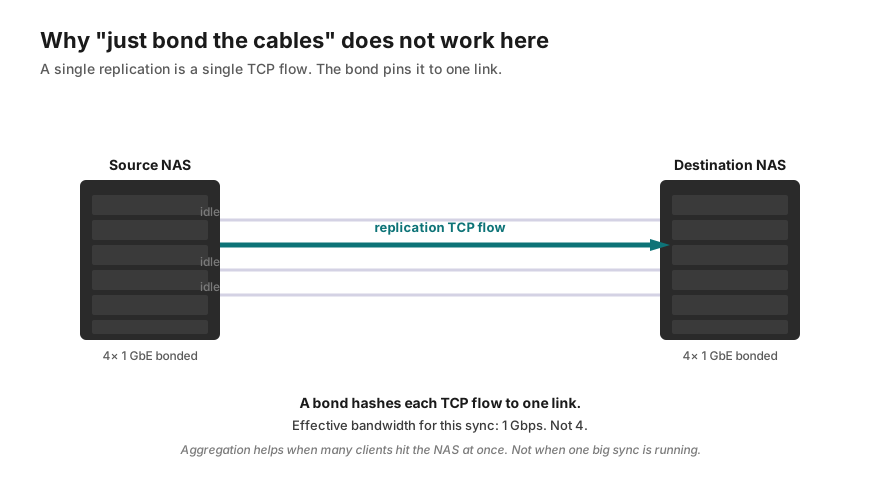
First, link aggregation does not speed up a single connection. A bonded interface looks like one big pipe in marketing materials. In reality, the bond hashes each TCP flow to one of the underlying links and pins it there for the life of the connection. Replication is a single TCP flow. So even on a perfectly configured 4×1 GbE bond, this transfer would be capped at 1 Gbps, the same ceiling it has on a single cable.
Aggregation helps when you have many connections at once. A NAS serving twenty SMB clients in parallel benefits. A single big sync does not.
Second, even if you could somehow remove the network ceiling entirely, the destination CPU is already at 94%. More bandwidth would just mean the CPU saturates harder. You’d squeeze a few more MB/s out of it before hitting 100% on one core, and that would be the new wall.
The two ceilings on this hardware (1 GbE and Atom CPU) happen to sit close together. That’s not coincidence. The hardware was designed to balance them at the time it was built. They’ve both aged at roughly the same rate.
This is the part worth carrying out of the post: on a prosumer NAS doing a big single-flow operation, the CPU usually binds before the network does. “Add another cable” is the answer to a different question.
The thing I never figured out
There are two separate problems in this story, and I only really solved one.
The first is the slow throughput. CPU pegged on the destination, drives bored, network near ceiling. That diagnosis is solid.
The second is the periodic deaths. Every one to two hours through the initial sync, the btrfs send process on the source dies, and a new one spins up to resume from the resume token. I caught at least three generations of this in a single afternoon. I never proved what triggers the deaths.
CPU pegging by itself does not normally cause a TCP connection to drop. When the receiver can’t keep up, TCP backpressure makes the sender slow down, the connection doesn’t fall over. So the “destination CPU is at 94%” finding doesn’t directly explain why the send process keeps dying. Those are two different problems that happen to be running in parallel.
A few guesses for what’s actually causing the periodic deaths, all of them mine and none of them documented. I’m putting them here mostly so I can come back later if any of them turn out to be right:
- Synology’s Replication Service may have its own internal restart or watchdog logic. Long-running daemons sometimes refresh their connections on a timer for safety. I can’t find any public Synology documentation that confirms or denies this.
- TCP keepalive timeout during long metadata-walk pauses. btrfs send sometimes pauses while it walks the snapshot tree before sending more data. If a pause runs longer than the keepalive threshold on either end, the connection drops and the next attempt has to resume. The CPU being pegged could prolong these pauses, making timeouts more likely, but it’s an indirect contributor at most.
- Memory pressure on the destination. The DS1815+ has 1.94 GiB of RAM, almost all in use as cache. If the receive process briefly swapped during a heavy phase, that could cause a stall long enough to trigger something. I checked memory once during the diagnosis and didn’t see obvious pressure, but I didn’t watch it across a full death cycle.
- A real network blip. Less likely on a quiet LAN, but always on the list.
What matters for the system overall is that the resume token mechanism makes all of this invisible to the end result. Every death is followed by a new attempt that picks up from where the last one stopped. The sync still completes. It just completes in roughly twenty short transfers stitched together rather than one long one. Annoying to watch, fine to leave running.
If I dig in later and figure out the actual trigger, I’ll update this section.
What I’m actually changing as a result
Nothing, on this run. The current sync is doing exactly what it should, at the rate the hardware can sustain. As of writing this, the task has been running for 25 hours and has landed about 1.54 TB on the destination, roughly 14% of the share. At this average rate (including the stalls and resumes) the remaining 9.5 TB will probably take another 3 to 6 days of background traffic.
And that’s just the first of the four shares I’m replicating. Once VideoProjects finishes, the homes, Proxmox, and Archive shares each get their own initial sync. They’re smaller than VideoProjects, but they aren’t free, and each one has the same per-share-per-task structure I covered in part 1. Total time to a fully populated backup is going to be measured in weeks, not days.
That’s longer than I’d want for any kind of regular operation, but for a one-time initial sync after a year of “no real backup,” it’s a fine trade. The system is making progress, the data is landing, and nothing on the network is starved.
What I am changing is my plan for the destination side longer-term. The DS1815+ is end-of-software-life. Its CPU is the active bottleneck. Its drives have years of life left and several times more performance than is being used. There is a version of this lab where the same drives sit in a faster chassis and the network ceiling gets pushed up at the same time as the CPU ceiling.
Whether that means a new NAS, or a repurposed Linux box with a JBOD, or something in between, is part 3.
Coming next: Part 3: What I’m doing next. What it would actually take to unlock the drives, what I already have on hand that could play the role, and the tradeoffs between buying new and building from parts.
Leave a comment
Comments are moderated, so it may take a bit before yours appears. Your email is never published.