How much does Tailscale actually slow you down? I ran the numbers.
I was in the Philippines for a trip and needed to offload some footage to my NAS back home before I ran out of drive space. The files were 4K clips from a video I had already finished editing and published on YouTube. No reason to keep them on the external drive anymore, but they needed to go somewhere permanent. The NAS at home is the right answer. The question was how to get there from the other side of the Pacific.
I use Tailscale for remote homelab access, so connecting was not the problem. But before I started any transfer, I wanted to know what I was actually working with: how much overhead does the tunnel add, and what should I realistically expect for speeds from here?
So I ran a speed test before connecting, then again after. The results were almost identical, which would have been a clean and satisfying story. The problem was that the exit node was on during both of them.
Here is what the numbers actually look like once you run them correctly.
The setup
I was on PLDT fiber in the Philippines, pulling about 80 Mbps up and down. The homelab is on residential fiber with gigabit symmetrical back in California. I use Tailscale for remote access, with a Linux Docker host on the homelab network acting as both the subnet router and the exit node.
The tool I used is networkquality, which ships with macOS. It runs a multi-flow test against Apple’s edge infrastructure and reports upload capacity, download capacity, idle latency, and responsiveness under load. It takes about 20 seconds to run and gives you high-accuracy readings with no extra software to install.
One caveat on the numbers, worth stating up front. My brother in law, whose house I was staying at, says their speeds tend to sag toward the end of the month and pick back up at the start of the next one. Their theory is that it tracks the billing cycle, or total usage across the month. That is what the household notices, not anything the ISP publishes, and I have no way to verify it from here. But I ran these tests on June 23, which is exactly the part of the month they say is slow, so treat the absolute numbers as a floor rather than a ceiling.
It does not affect the comparison, though, which is the actual point of the post. All three runs happened back to back on the same connection within a few minutes of each other. Whatever that line was doing that day, it was doing it to all three tests equally.
The accidental discovery
The first test was supposed to be the baseline, before I touched Tailscale at all.
It was not the baseline. The exit node was already enabled, which meant all my traffic was routing through the homelab’s internet connection. The result came back at around 66 Mbps up and down, which is plausible for the homelab’s outbound capacity, and nothing about the number felt wrong. So I connected to Tailscale, disabled nothing, and ran the test again. Same result. Two tests, same wrong configuration, zero red flags.
I only caught it when I went to compare the numbers and they were too close. Disabled the exit node, ran again, and got 81.8 Mbps up and 88.8 Mbps down. That is what my actual connection looks like when the tunnel is not rerouting everything through another building.
The results
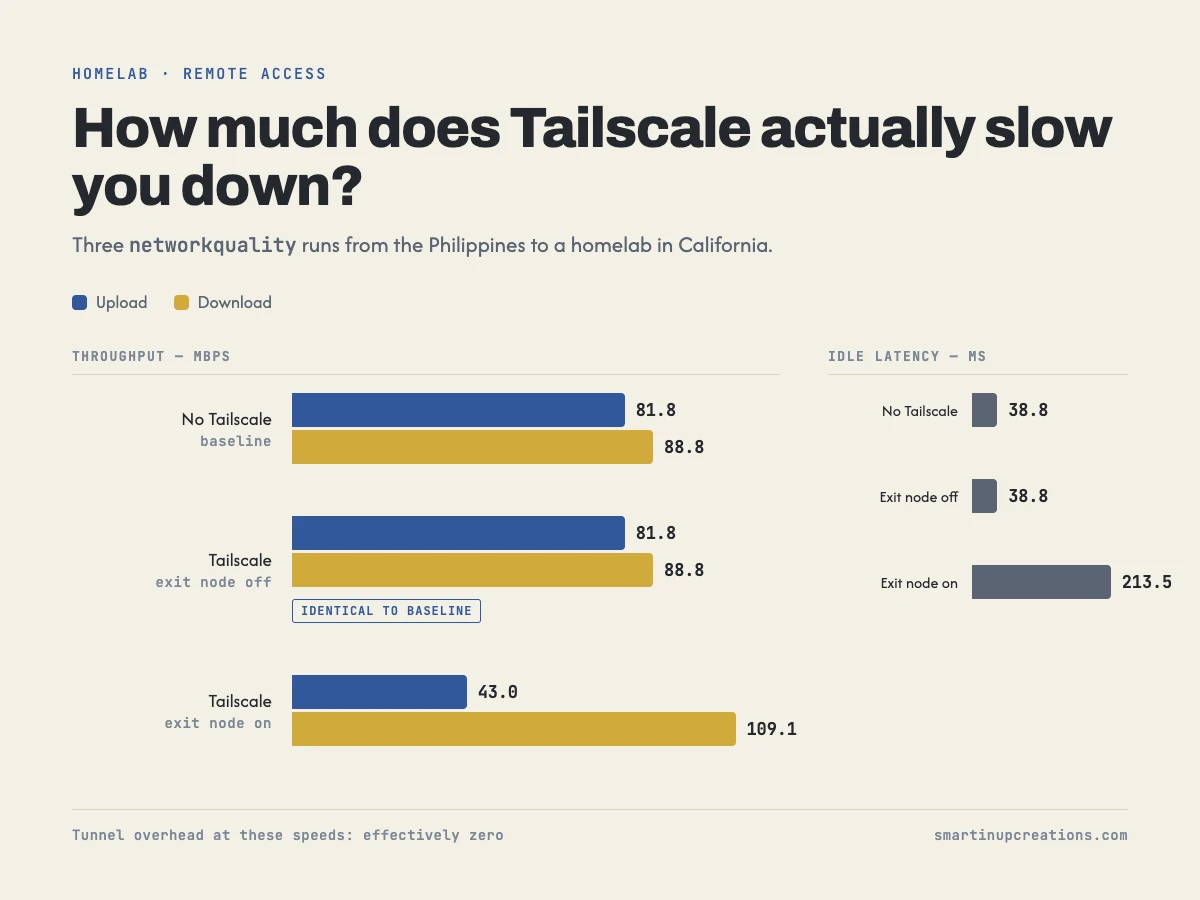
Once I had the correct baseline, I ran all three scenarios cleanly: no Tailscale, Tailscale without exit node, and Tailscale with exit node on.
| Scenario | Upload | Download | Idle latency |
|---|---|---|---|
| No Tailscale | 81.8 Mbps | 88.8 Mbps | 38.8 ms |
| Tailscale, exit node off | 81.8 Mbps | 88.8 Mbps | 38.8 ms |
| Tailscale, exit node on | 43.0 Mbps | 109.1 Mbps | 213.5 ms |
The no-exit-node result is the one worth sitting with for a second. Throughput is identical to the baseline. Latency is identical. Tailscale, with WireGuard doing the encryption and routing, adds nothing measurable in practice. The tunnel exists but it does not cost you anything at normal speeds.
The exit node numbers explain why the first two tests looked so plausible. With exit node on, all traffic routes through the homelab’s connection instead of your local one. Download jumped to 109 Mbps because the homelab’s fiber download capacity is now handling your upstream requests. Upload fell to 43 Mbps because the homelab’s upload has become the ceiling for your outbound traffic. Latency tripled because every packet takes a round trip through the remote network before it goes anywhere useful. There was also a connection timeout mid-test, which is the kind of thing that starts happening when you stack two encrypted tunnels and a longer round-trip path under load.
For daily use, the answer the numbers give you is straightforward. Leave exit node off. You get full access to every device on the homelab network with full WireGuard encryption, and you pay nothing measurable in performance. Exit node is the right tool when you specifically want your traffic to originate from your home IP, or when you are on an untrusted network and want everything routed through a connection you control. For general homelab access, it is overhead without a corresponding benefit.
What this looked like on an actual file transfer
Speed tests are numbers on a screen. The real question was what a file transfer would feel like over this connection.
I tried the obvious thing first: connected to my NAS through a Finder-mounted SMB share and started an rsync. The transfer started at 1.18 MB/s. With the file I was moving, that was a two-hour estimated completion.
That number does not match the bandwidth available, and that mismatch is the interesting part. The tunnel was confirmed peer-to-peer at this point, not relaying through Tailscale’s infrastructure. The connection was fine. The problem was SMB.
SMB is a chatty protocol. It does a lot of handshaking and acknowledgment per block transferred, which is invisible on a local network where round trips are measured in fractions of a millisecond. Over a remote tunnel where idle latency is 38 milliseconds, each of those round trips is a real wait. They compound. What looks like adequate bandwidth at the connection level turns into poor throughput at the application level because the protocol is spending most of its time waiting for acknowledgments rather than moving data.
Switching to rsync over SSH fixed it immediately. Same Tailscale tunnel, same route, same NAS, different transfer mechanism. Speed jumped to 7.6 MB/s and held there, moving a 9.0 GB file in about 20 minutes. That works out to roughly 61 Mbps, against the 81.8 Mbps of upload the speed test measured, so I was using about three quarters of the connection. SMB had been managing about 9 Mbps, a little over a tenth of it. The tunnel was never the bottleneck. The protocol was.
The command, for reference:
rsync -ah --progress -e "ssh -p <your-ssh-port>" \
  /path/to/local/file \
  user@nas-ip:/volume1/ShareName/destination/
The -a flag preserves timestamps and permissions. The -h flag makes sizes human-readable. The --progress flag shows speed and time remaining per file. If the transfer drops, rsync picks up where it left off on the next run.
SMB makes sense on a local network. The assumptions it makes about round-trip cost are true when the other device is 20 feet away and connected via gigabit Ethernet. Over a remote encrypted tunnel where every acknowledgment is a measurable event, those assumptions break down fast. rsync over SSH is the right tool for this job, not because SSH is magic, but because it treats the network honestly.
What I actually learned
The Tailscale overhead question turned out to be the least interesting finding. WireGuard is fast and the answer is effectively zero at normal speeds.
The more useful thing I walked away with is that the exit node setting is easy to leave on by accident, the performance impact is real and visible in speed tests, and the number it shows you looks just plausible enough that you might not question it. The test that told me something true was the third one.
And when you need to move files remotely, the protocol matters as much as the bandwidth.
Leave a comment
Comments are moderated, so it may take a bit before yours appears. Your email is never published.